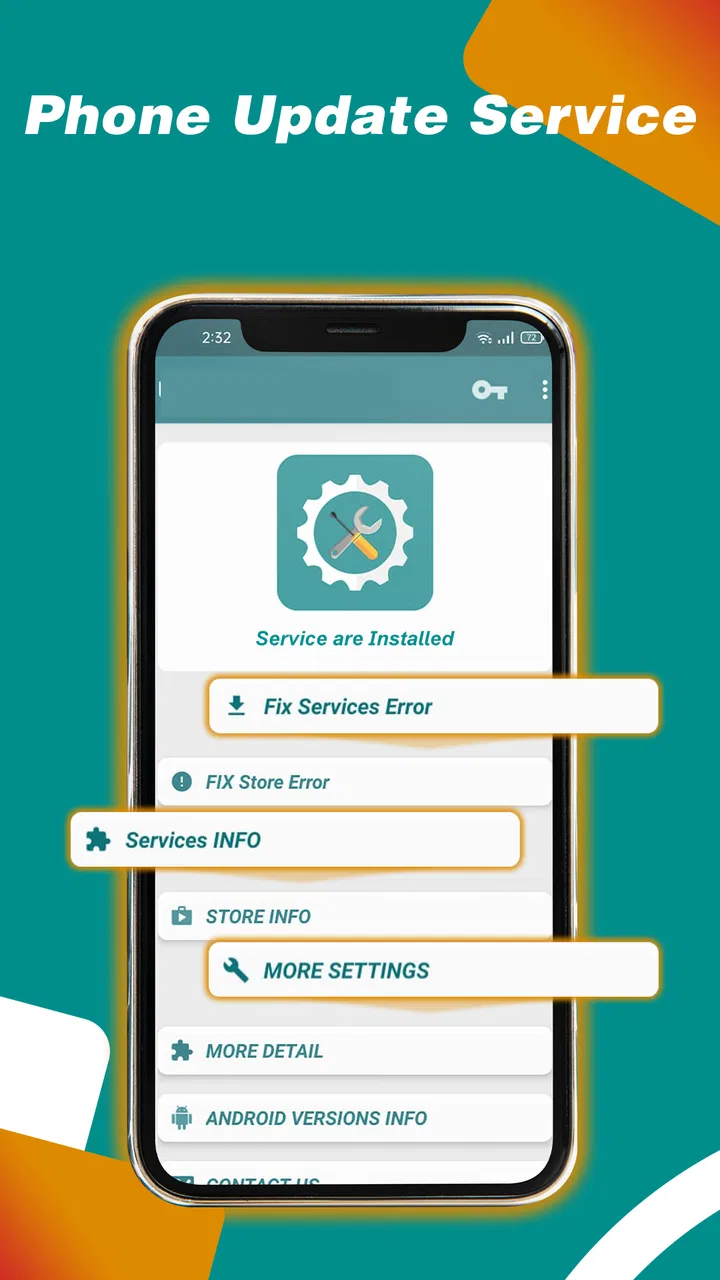
Services Info / Apk Installer
- 3.8
- Rating
- 1.00M
- Installs
- Free
- Price

 Analysis by App-foxy
When an Android phone suddenly reports that a system service has stopped working, the hardest part is often identifying what “service” actually means. The message can sound more serious than it is, and the usual advice—restart the phone, clear random caches, or install another cleaner—does not always help. Services Info, also presented as Apk Installer in some contexts, is designed for this narrow problem: checking the status of phone services and helping users reach the relevant system components when something appears to be wrong.
I found its value less in dramatic repair tools and more in giving a confused user a clearer starting point. It belongs to the Libraries & Demo section, comes from Smart Apps Services, and is free to use. The app has passed the point where it feels experimental, with over a million installs, although its average rating of 3.8 shows that the experience is useful for some people and frustrating for others. That mixed reaction makes sense: an information and troubleshooting utility can be genuinely helpful when it points you toward the right system screen, but it cannot repair every problem that happens to mention services.
My review focuses on the practical question I would ask before installing it: will this help me understand a phone-services error, or will it simply add another screen to an already confusing problem? The answer depends on how you use it. It is most useful as a diagnostic companion, not as a magic maintenance button.
You May Also Like

 AccuWeather: Weather Radar
AccuWeather Review: A Quick, Clear Forecast for Everyday Decisions
For everyday plans, the best forecast is the one you can understand quickly. AccuWeather makes rain timing, radar, and local conditions easy to act on, with a few trade-offs.

 Hill Climb Racing
Why Hill Climb Racing Still Turns Crashes Into One More Run
A tiny car, a bumpy hill and one more upgrade: Hill Climb Racing keeps resurfacing because its simple chaos makes every near-miss feel personal.

 AliExpress - Shopping App
AliExpress Makes Global Shopping Feel Personal, but Shoppers Bear the Risk
AliExpress turns a global marketplace into a pocket-sized discovery engine. Its reach is useful, its shopping loop compelling, and its trade-offs easy to miss.

 Lords Mobile: Kingdom Wars
Lords Mobile Is a Kingdom-Building Routine, Not a Quick Match
A case-by-case verdict on the building, battles, device demands, and social commitments that make Lords Mobile rewarding for some players and exhausting for others.

 PDF Scanner app - TapScanner
TapScanner Makes Paperwork Easier to Capture, Check, and Share
TapScanner makes scanning with a phone feel less like a rescue operation and more like a dependable step in getting work done. Its capture tools are useful, though not flawless.

 Block Blast!
 Shows How Much a Puzzle Game Can Leave Out
A quiet grid game shows why puzzle players increasingly value instant clarity, repeatable skill and low-pressure play—and where the genre still needs to catch up.
More From Our News Desk
View All News


Where the real difficulty begins
I find the real difficulty starts when an error message names a service but gives no useful explanation of what failed. This section looks at how to distinguish a system component from the task that triggered the warning, so the next checks can stay focused rather than turning into guesswork. Pinning down the trigger is the first step before changing any settings.
A service error is not always an app error
The first trap is assuming that every service-related warning comes from Services Info itself. Android uses the word “service” for many different background functions, including components connected with accounts, downloads, updates, device communication, and other system activity. A message may appear after an update, during an installation, or when an older component does not cooperate with the phone’s current software. The app can help you inspect the situation, but it does not automatically prove which component caused it.
That distinction matters because many users open a utility like this expecting a one-tap fix. In my experience, the better approach is to treat the app as a map. I use it to identify the relevant service or system package, then I compare that information with what the phone was doing at the time. If an error appeared while installing an application, I look first at the installation path and the package involved. If it appeared while syncing an account, I investigate that account-related activity instead of changing unrelated settings.
What the app is good at clarifying
The useful part of this kind of tool is the separation between a named service and the rest of the phone. Instead of searching through every installed application, I can begin with the component that Android has already mentioned. That saves time, especially on a phone with many preinstalled packages whose names are not familiar.
A practical example is a phone that refuses to complete an installation and displays a system-services warning. I would open Services Info, note the service or package name shown there, and then check whether the phone has enough storage, whether the installation source is trustworthy, and whether the relevant system component is disabled. This sequence is safer than repeatedly installing unknown “repair” applications or deleting data from several system apps at random.
The app is also useful for a second opinion. If its information points toward a service that is unrelated to the failed task, that is a clue not to overreact. Sometimes the warning is a side effect rather than the root cause. The phone may be dealing with a damaged download, an incompatible package, or a temporary connection problem while the service message is only the visible symptom.
Why the rating feels understandable
Services Info has an average rating of 3.8 from around eight thousand ratings, along with hundreds of written reviews. I can understand both sides. Someone who needs a direct pointer to a system component may find it immediately useful. Someone expecting automatic repair may see little benefit if the underlying issue is caused by the operating system, the installation file, or the phone manufacturer’s software.
That difference in expectations is the main source of friction. The app’s category, Libraries & Demo, also gives a better hint about its character than the word “fix” might. I would approach it as a utility for checking and navigating service information, not as a full repair suite. That mindset makes the experience more productive and reduces the temptation to change settings without knowing why.
Checks to make before changing anything
Before I change anything, I want to know what the phone was doing, which service was named, and whether basic conditions such as storage or connectivity could explain the failure. This section covers a careful way to gather that context and verify the relevant component in Android’s own settings. A little preparation makes the next troubleshooting step easier to reverse if it does not help.
Start with the phone, not the utility
Before using any troubleshooting app, I recommend recording the exact warning and the action that triggered it. Was the phone downloading an update, opening a newly installed application, connecting to an account, or trying to install a package? This small note is more valuable than a vague memory that “Android stopped working.” It gives the information in Services Info a real context.
I also check the basics: available storage, network stability, battery level, and whether the phone has just restarted after an update. These checks sound ordinary, but they prevent a common mistake—blaming a system service for a failure caused by a full storage area or an incomplete download. A phone that cannot create temporary files may report a service failure even though the service itself is operating normally.
Use the correct Android version as a starting point
The application requires Android 5.0 or later and currently sits at version 1.4.3. That makes it accessible to a broad range of devices, including older phones that may not have the same menus or service architecture as newer models. I would not assume that a label or screen looks identical across manufacturers. Samsung, Motorola, Xiaomi, Pixel, and other Android devices can place system controls in different locations and may rename certain entries.
For that reason, I use the app’s information to identify what I should look for, then I confirm the setting in the phone’s own system menus. If a service appears disabled, I verify the name carefully before enabling anything. Similar-looking package names can belong to different functions, and changing the wrong one may create a new problem instead of solving the original one.
Do not confuse an APK with a service diagnosis
The Apk Installer wording deserves particular care. An APK is an Android application package, while a phone service is a system component or background function. Those are related only in certain troubleshooting situations. If the problem began with a package installation, checking the package source and compatibility is important. But installing an APK simply because a service warning appeared is not automatically a sensible repair.
My rule is simple: I only consider an installation file when I know what it is, where it came from, and why the phone needs it. I avoid replacing a system component with an unfamiliar package just because its name looks similar. Services Info can help me inspect the situation, but it should not be used as a reason to bypass normal caution around application packages.
What I would check inside the phone settings
After identifying the relevant service, I look at the phone’s own application-management screen. Depending on the device, that may allow me to see whether the component is enabled, stop it, clear temporary cache, or review its update state. I make one change at a time and test the original action again. Changing several services together makes it impossible to know what helped and can make recovery harder.
I am especially cautious with “clear data.” Temporary cache and stored application data are not the same thing. Clearing stored data can sign an account out, remove local preferences, or reset a component’s working state. I would only use that step when the service is clearly connected to the failure and I am comfortable signing in again or restoring settings. The app’s greatest practical benefit here is helping me narrow the target before I touch such controls.
Recovering a workflow without making the problem worse
A failed installation or interrupted task can leave a confusing trail, so I prefer a short, repeatable recovery process over a broad cleanup. This section explains how to retry the original action, make one targeted adjustment at a time, and keep track of whether the result actually changed. That gives the service information practical value without treating it as an automatic repair.
A safe sequence for installation failures
When an installation fails, I use a short recovery sequence rather than jumping straight to system changes. First, I cancel the failed attempt and remove the incomplete download if the phone offers that option. Next, I check storage and restart the device. Then I try the same task again using a known, trustworthy source. If the message still refers to a service, I use Services Info to identify the named component and inspect it through Android’s settings.
This order is useful because it separates a damaged installation attempt from a persistent service problem. If the second attempt works after a restart, there may be no reason to alter a system component. If it fails in exactly the same way, the service information becomes more meaningful. I can then test one targeted change, such as re-enabling a disabled component, rather than performing a broad cleanup.
Keep a before-and-after note
One of the more useful habits with a diagnostic app is writing down the original state. I note the service name, whether it appeared enabled, and what action failed. After making a change, I repeat the same action and record the result. This sounds excessive for a small phone problem, but it prevents circular troubleshooting, where I keep repeating steps without knowing whether anything changed.
It also helps if the issue returns. A service that works immediately after a restart but fails again during a particular task suggests a different cause from a service that remains disabled. Services Info cannot supply that history for me; I have to create it through a careful workflow. That is an important limitation, but it is also where the app becomes more useful than a generic cleaner: it encourages a focused investigation when used deliberately.
When a restart is the best intervention
I would not underestimate a normal restart. Background components can become stuck after an interrupted update or a failed installation, and a restart may reload them without any permanent change. If the error appears once and disappears after restarting, I would stop there rather than continuing to “optimize” the phone.
On the other hand, repeated failures after every restart deserve closer attention. In that situation, I use the app to confirm whether the same service is involved each time. If the named component changes from one attempt to another, the problem may be broader—storage, operating-system instability, or an application conflict. If the same component is always named, targeted system settings and the phone manufacturer’s support guidance are more appropriate next steps.
When an alternative is better
For ordinary app installation, the phone’s built-in application manager and official app store usually provide a cleaner workflow. They understand the device’s normal update path and reduce the risk of using an unsuitable package. For storage problems, Android’s own storage screen is often more direct. For serious operating-system faults, manufacturer support or a full backup followed by a reset may be more appropriate than a small service-information utility.
I would choose Services Info when the error is vague, the service name is unfamiliar, and I need help narrowing the search. I would skip it when I already know the failure is caused by a corrupt installation file, a blocked account, insufficient storage, or a manufacturer-specific bug. In those cases, another tool or support channel addresses the actual cause more directly.
When the app is not the cause
Sometimes the service warning is only a symptom of a network, account, storage, or wider software issue. This section considers clues that point away from a single component and toward a more general phone problem. Recognizing that distinction helps me know when to stop experimenting and use the phone’s built-in recovery options or seek device-specific support.
Signs of a wider phone problem
There are situations where the service message is only one symptom among several. Frequent crashes across unrelated applications, failed updates, unexpected restarts, or menus that stop responding point toward a larger software issue. If the phone has recently been modified, rooted, or subjected to aggressive system-cleaning tools, the service warning may be connected to those changes rather than to a single component.
In that scenario, I would avoid repeatedly disabling and re-enabling services. I would back up important information, remove questionable utilities, and use the phone maker’s documented recovery options. A diagnostic app is not a substitute for a backup, and no information screen can protect files that are already at risk of being lost.
Network and account issues can look similar
A service that depends on communication with an account or online system may appear broken when the real issue is connectivity. I check whether other applications can reach the internet, whether the phone’s date and time are correct, and whether the same task fails on a stable connection. I also make sure I am using the intended account and that I am not confusing a sign-in problem with a disabled service.
This is one of the most important trade-offs in using a service checker. It gives the problem a technical name, which is helpful, but a technical name can create false confidence. I still test the surrounding conditions. If a task works on another network or after correcting an account issue, the service may have been healthy all along.
Older devices need extra patience
The broad Android compatibility is welcome, but older phones can behave differently from current devices. Their system components may be updated less often, their menus may use different labels, and their available storage may be tighter. I would therefore treat any result as device-specific rather than assuming that a step that works on one phone will work on another.
For an older device, I favor reversible actions: restart, confirm storage, check that the named component is enabled, and repeat the original task. I avoid replacing system packages or clearing important data unless I understand the consequences. That conservative approach is slower, but it is much less likely to turn a small installation problem into a larger one.
Privacy and trust in the troubleshooting process
Because this app deals with phone-service information, I would install it only from a source I trust and pay attention to the identity of the developer, Smart Apps Services. I also avoid granting unrelated access to any utility simply because it promises a faster repair. The safest troubleshooting process is the one that changes as little as possible and keeps the user aware of what is being changed.
I do not see the app as a replacement for Android’s own controls. Instead, I see it as a convenient layer for users who need help locating or understanding service-related entries. That distinction keeps expectations realistic and makes it easier to stop using the app once the relevant information has done its job.
My practical verdict after using it
Services Info is worth trying if your problem is specifically a confusing Android service warning. Its strongest role is helping you move from a vague message to a named component and a more focused troubleshooting plan. It is free, rated for Everyone, and available for phones running Android 5.0 or later. Those details make it approachable for ordinary users, including people using older devices that may not have modern diagnostic screens.
I would recommend it to someone who wants to understand what Android is referring to before changing settings. It can be especially helpful during an installation failure, after an interrupted update, or when a system component appears disabled and its name is difficult to interpret. The best results come from pairing it with a written before-and-after note, one change at a time, and a quick check of storage, network, and account conditions.
I would not recommend treating it as an automatic repair button. It cannot turn every service message into a solution, and it may feel underpowered if your real issue is a damaged operating system, an incompatible APK, a full storage area, or a manufacturer-specific fault. In those cases, Android’s built-in tools, the official installation route, or device support may be the better choice.
My final view is positive but measured. The app fills a narrow gap: it gives ordinary users a clearer way to inspect phone services without immediately resorting to drastic changes. Its usefulness depends on good judgment, because identifying a component is not the same as fixing it. If you approach it as a guide for safe, targeted checks rather than a promise of instant recovery, Services Info can earn a place in your troubleshooting toolkit.
FAQs for Services Info / Apk Installer
01What is the primary function of Services Info / Apk Installer?
Services Info / Apk Installer is designed to help users manage and install APK files on their Android devices. It provides detailed information about installed services and assists in organizing app installations from external sources, making it a handy tool for users who frequently sideload applications.
02Is Services Info / Apk Installer safe to use on my device?
Yes, Services Info / Apk Installer is safe when downloaded from reputable sources. It does not contain malicious software and is designed to enhance user control over app installations. However, always ensure that APK files installed through the app are from trusted sources to maintain device security.
03Does the app require root access to function properly?
No, Services Info / Apk Installer does not require root access to perform its main functions. Users can manage and install APK files without rooting their devices, making it accessible to a wider range of users who prefer to keep their device's default settings.
04Can Services Info / Apk Installer manage updates for my applications?
While Services Info / Apk Installer assists with installing and managing APK files, it does not directly handle app updates. Users need to manually download and install updated APKs. For automatic updates, consider using the Google Play Store, which provides a streamlined update process.
05What are the system requirements for Services Info / Apk Installer?
Services Info / Apk Installer typically works on most Android devices running Android 5.0 (Lollipop) and above. It requires minimal storage space and runs efficiently without consuming excessive system resources, ensuring smooth performance even on older devices.
Pros
- User-friendly interface
- easy navigation.
- Quick installation process for APKs.
- Supports multiple file formats.
- Automatic updates for apps.
- Minimal storage space required.
Cons
- Requires manual permission adjustments.
- Limited customer support options.
- Potential security risks with APKs.
- Ads can be occasionally intrusive.
- No built-in virus protection.

Services Info / Apk Installer
Gallery